Using 4AI
Once you have set up your API key, and possibly other options, you can start using 4AI. You can do this:
- on any page of the admin
- when editing an article or a custom HTML module on the frontend
Opening the assistant
4AI will display a small icon you can click to open the assistant:
- on all pages of the admin
- on edit pages on the frontend (when editing an article or an HTML module)
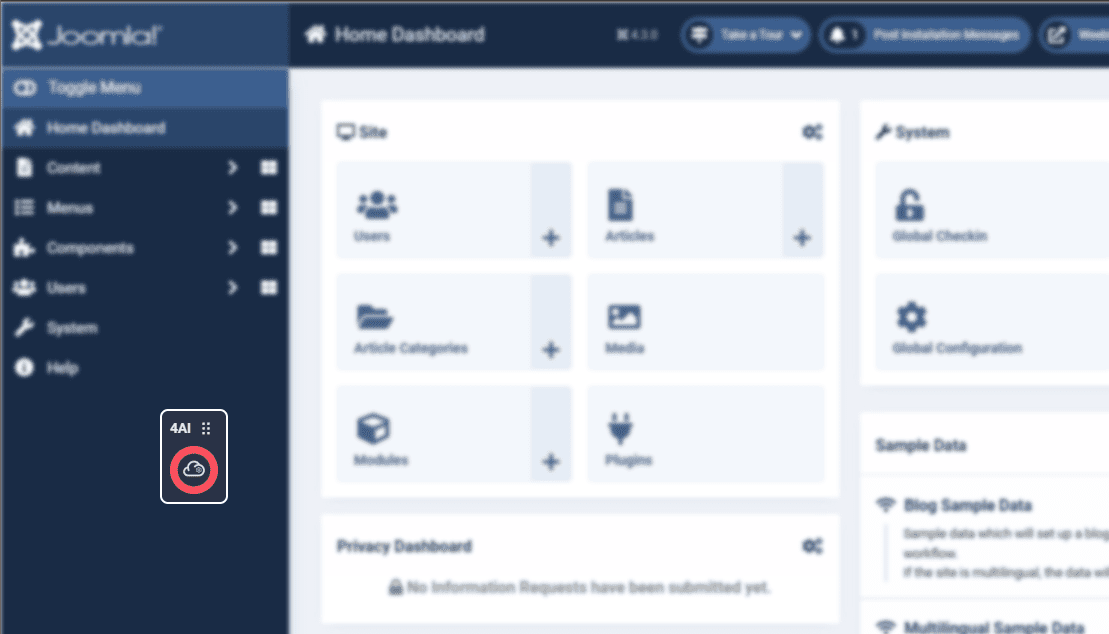
You can move that icon around by dragging it with your mouse. Clicking on it will open the 4AI assistant.
Keyboard shortcuts
You can perform the following operations at any time using your keyboard only:
ctrl + shift + 4: open the 4AI assistantctrl + shift + 5: Hide/show the 4AI icon
You can disable or enable back these keyboard shortcuts (in case they interfere with other applications) on the General configuration page
Using the assistant
The assistant has 6 main tabs: Transform, Create, Image, SEO, Social and Ads and Chat, which are described in the following pages.
On all these tabs, you'll also find on the right side of the assistant a control area. Its content will change depending on what you are doing, to let you perform different actions.
Content source
When you open the assistant, 4AI looks for some content on the page to work on, the source or source content. The source can be:
- a Joomla editor, for instance the main text of an article
- a textarea, for instance a meta description, or any multi-line field of a 3rd-party extension
- a single-line text field, for instance an article title
4AI picks the source this way:
- if you clicked or typed in an editor, a textarea or a text field just before opening the assistant, that field is the source
- otherwise, the first editor on the page is used
- if the page has no editor, the first textarea on the page is used
The source content is automatically copied into the Transform, SEO and Social and Ads tabs, and the AI-generated content can be sent back to it with the Replace source and Append to source buttons.
Work on part of the content only
If you select part of the text in the source before opening the assistant, only the selected text is used, and Replace source only replaces that selection.
Quick rewrite a title or a description
Click in the field you want to work on, for instance an article title, then press ctrl + shift + 4: 4AI opens with that field as its source. Rewrite it, spell check it or translate it, then click Replace source.
Request controls
When you are preparing your request or question to the AI assistant, request controls are displayed. Again, what control is displayed depends on what you are doing, but it will be similar to:
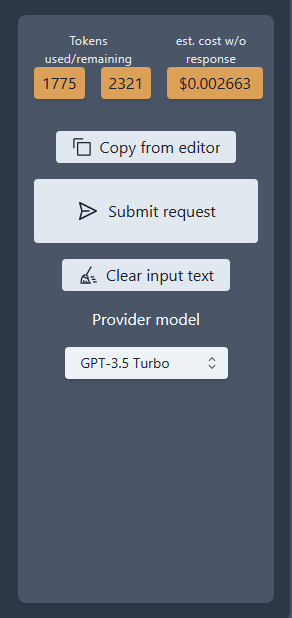
Submit request: press this button once you have selected all options and entered any input you need. This will send the request to the AI API provider, to obtain a responseCopy from source: copy again the content from the content source into your request input, for instance after you modified it in the pageClear Input text: if 4AI automatically retrieved the content found on the current Joomla page to serve as your request input, click this to empty that field and enter your own content to work on-
Provider model: most AI API provider have several AI "models", which performs and are priced differently. You should select the one that suits best your need at the time you use 4AI. Please refer to your AI API provider for current details on price and performance they offer -
Tokens used/remaining: questions and responses with an AI API service may incur a cost, based on how manytokensthe question and the response need. A token is roughly equivalent to a word but not exactly. Each model has limits on the number of tokens it can process, and how much a token processing costs. 4AI gives you a real time estimate of the number of tokens required for your question.
4AI can only estimate the number of tokens associated with your request. It cannot "guess" what the AI model is going to respond and therefore cannot estimate the length of the response. Please also note the tokens estimate is only that, an estimate.
It should be close to reality but only your AI API provider billing and usage, found on your provider dashboard, has the real numbers.
Response controls
Once you have obtained a response from your AI API provider, what you can do with it will vary a lot with the context. Usually, you'll be able to:
Replace source/Append to source: these buttons are available when 4AI found a content source when you opened it: a Joomla editor, a textarea or a text field. Clicking these buttons will replace the source content with the AI-generated content, or add the AI-generated content at the end of itSave as new Article: clicking this button opens a simple form where you can validate and save the generated content as a brand-new article, or as a translation of an existing article (4AI will create the Joomla associations for you)Copy to clipboard: available throughout the AI assistant, these buttons let you copy content to the clipboard for later use inside of Joomla or elsewhere.Modify request: close the current response and go back to setting options for a new request to be sent. Current response is not preserved.
4AI also offers several ways to further process a response you got to your request. This allows progressively getting to your desired result, if it can't be obtained in just one run:
Modify response: start a new request process, using the current response as the content to work onOpen in SEO: move to theSEOtab and copy the current response to serve as source content for SEO features. For instance, after writing some content, extract a list of related keywords for sharing or adsOpen in Transform: move to theTransformtab and copy the current response to serve as source content for SEO features. You can then for instance translate the response to another language, make it longer, shorter, obtain an summary,...Open in Social & Ads: move to theSocial & Adstab and copy the current response to serve as source content. For instance, after writing an article, write a tweet or a LinkedIn post about it.Open in SEO: move to theSEOtab and copy the current response to serve as source content for SEO features
There are several actions specific to Images. These are detailed on the Images page.