Campaigns options
A marketing campaign allows you to track and measure the effectiveness of specific promotional efforts by appending unique parameters (UTM tags) to your URLs.
When users click these links, 4Analytics can capture the traffic source, medium, and campaign name to show exactly which marketing initiatives are driving visitors to the site. This data helps website owners easily identify their highest-performing links and optimize their overall marketing strategy.
Campaigns are typically running for a specific event such as a product launch or a trade show for instance.
How does a campaign works in 4Analytics
- You define the campaign options under Configuration | Campaigns
- The URL and QRCode tool lets you build URLs that includes tracking variables, as well as QRCode represeting these URLs
- You use these URLs or QRCode. For instance, share them on social media or in an ads campaign print a QRCode on a leaflet or include it in a webinar or conference slide deck
- Whenever a visitor gets to your site using one of these links or QRCodes, 4Analytics counts that
This way you could know, for instance:
- how many people clicked came to your site from business cards you distributed at a conference
- how many visitors scanned your TV commercial
- how many visitors scanned the QRCode printed on your product box
Configure a campaign
Go to Configuration | Campaigns to see the list of existing campaigns.
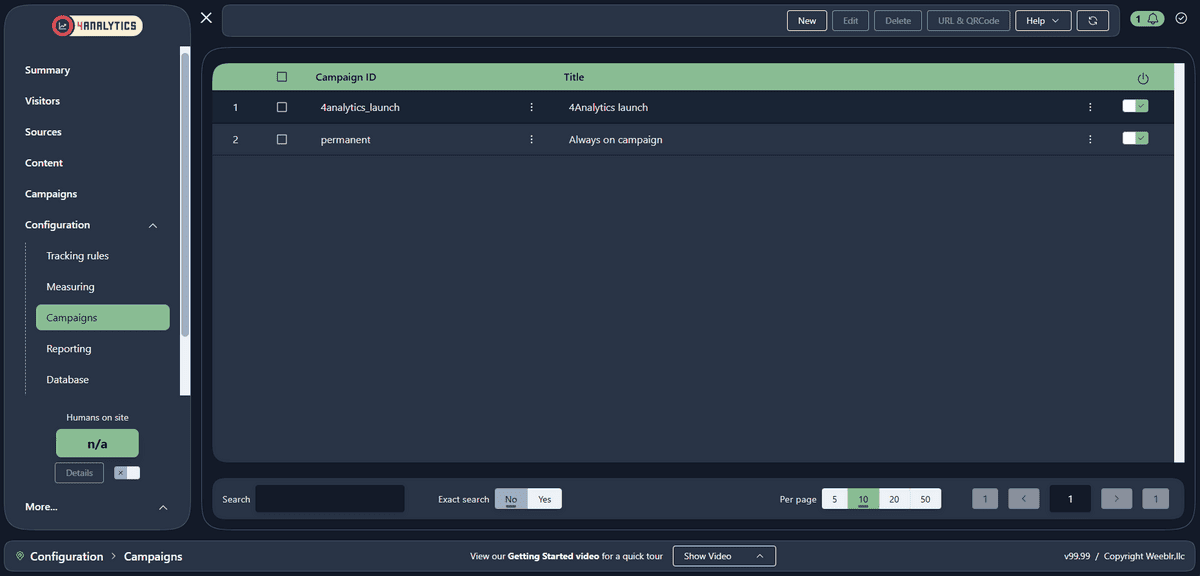
From the list, you can:
- You can quickly enable or disable a given campaign
- Modify a campaign or open the URL & QRCode tool for that campaign
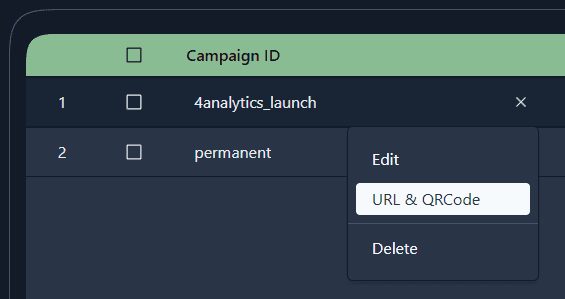
Campaigns details
Click New to create a new campaign or click the title of an existing one to modify it.
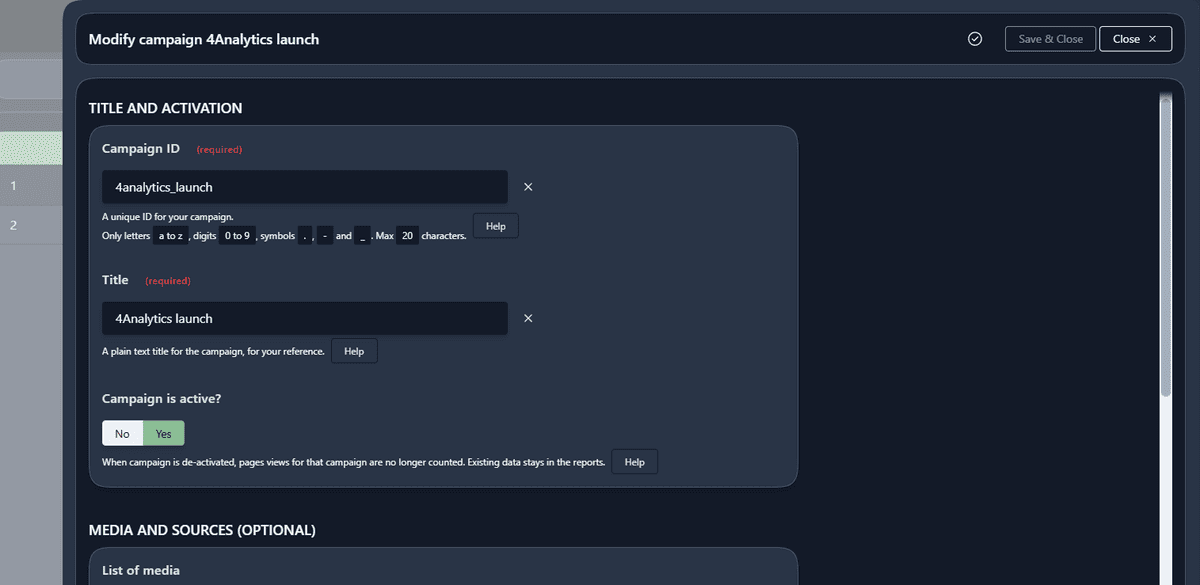
Title and activation
- enter a unique campaign ID: will be included in campaign URL as the
utm_campaignvariables and can only include specific characters - enter a title that describes the campaign for you. It will not be visible to the public
- Toggle the
Activestate as needed
Only active campaigns are tracked
You can define as many campaigns as you need to, but only visits from active campaigns are counted and reported on by 4Analytics as campaigns. This matches the fact that very often campaigns are limited in time. You certainly can keep an "always-on" campaign if you so desire.
Important: while views from inactive campaigns are not counted as part of a campaign, the page view itself is still counted normally by 4Analytics.
Media and sources
Media and sources are optional information you can include in your campaigns link to help you pinpoint the source of your website traffic.
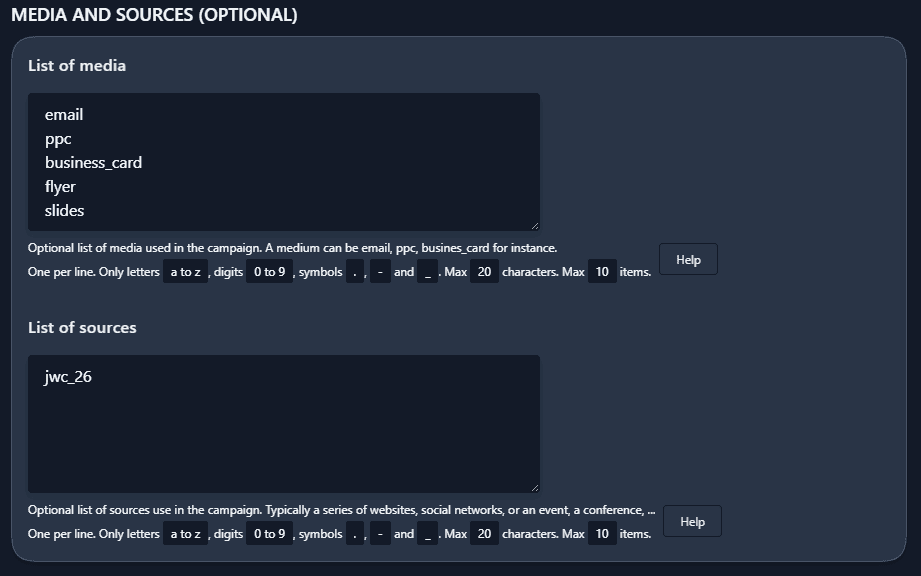
medium: indicates how the visitor found your link. Examples above include an email you may have sent, an ad (Pay-Per-Click or ppc), a QRCode printed on a business card or a leaflet, or slides in a webinarsource: indicates where the visitor found that link. For instance, if the medium for a visit is an ad (ppc), you can optionally usefacebook,xorprintvalue for the source, to better understand where the ad was seen
A few rules to follow:
- both medium and source values will be included in URLs, therefore they can only use a limited set of characters
- both are optional: you may only be interested in just identifying a campaign and noth source or medium
- if you define some media or sources, only the values listed here can be used in the campaign URLs
Activation period
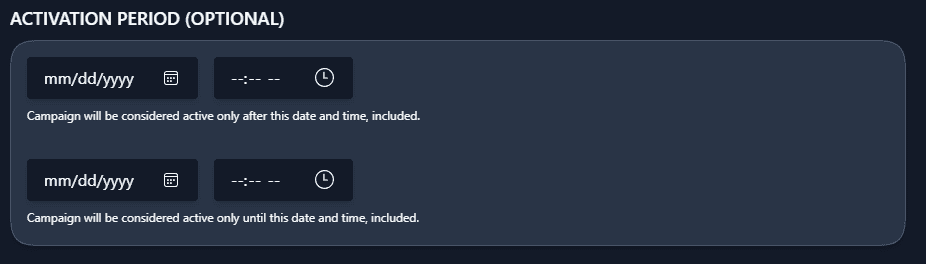
As campaigns are often limited in time (an event, a product launch, etc), you can specify starting and ending dates.
These dates are optional and separate: you can have a starting date and no ending date, and vice versa.
Note that the campaign is still marked as active when a date limit is passed, simply the visits are not counted anymore as part of a the campaign.
Notes
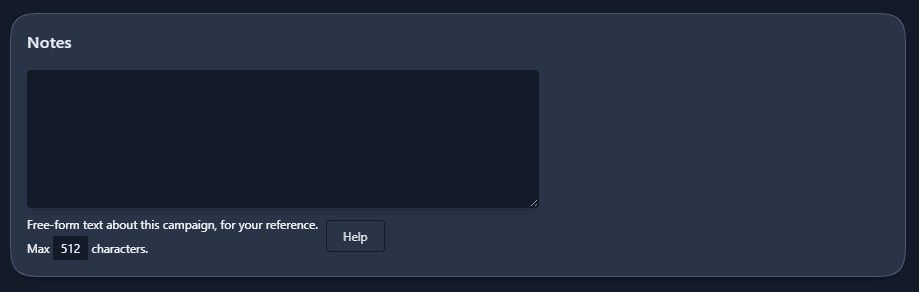
You can add free text notes here to help you manage the campaign.
URL & QRCode tool
Using a campaign link means using a complicated URL where utm_campaign, utm_medium or utm_source have been appended to an existing URL from your website.
Here is an example from a hypothetical launch campaign for 4Analytics. Assuming I want to share the 4Analytics product page at https://weeblr.com/4analytics in my slides during a presentation at a Joomla conference, the URL to use would be:
https://weeblr.com/4analytics?utm_campaign=4analytics_launch&utm_medium=slides&utm_source=jwc_26
You don't really want to type that manually. Also, and in this particular example, we very often want to use a QRCode instead of an actual URL.
4Analytics includes a tool that lets you build both URLs and QRCode for a campaign in seconds:
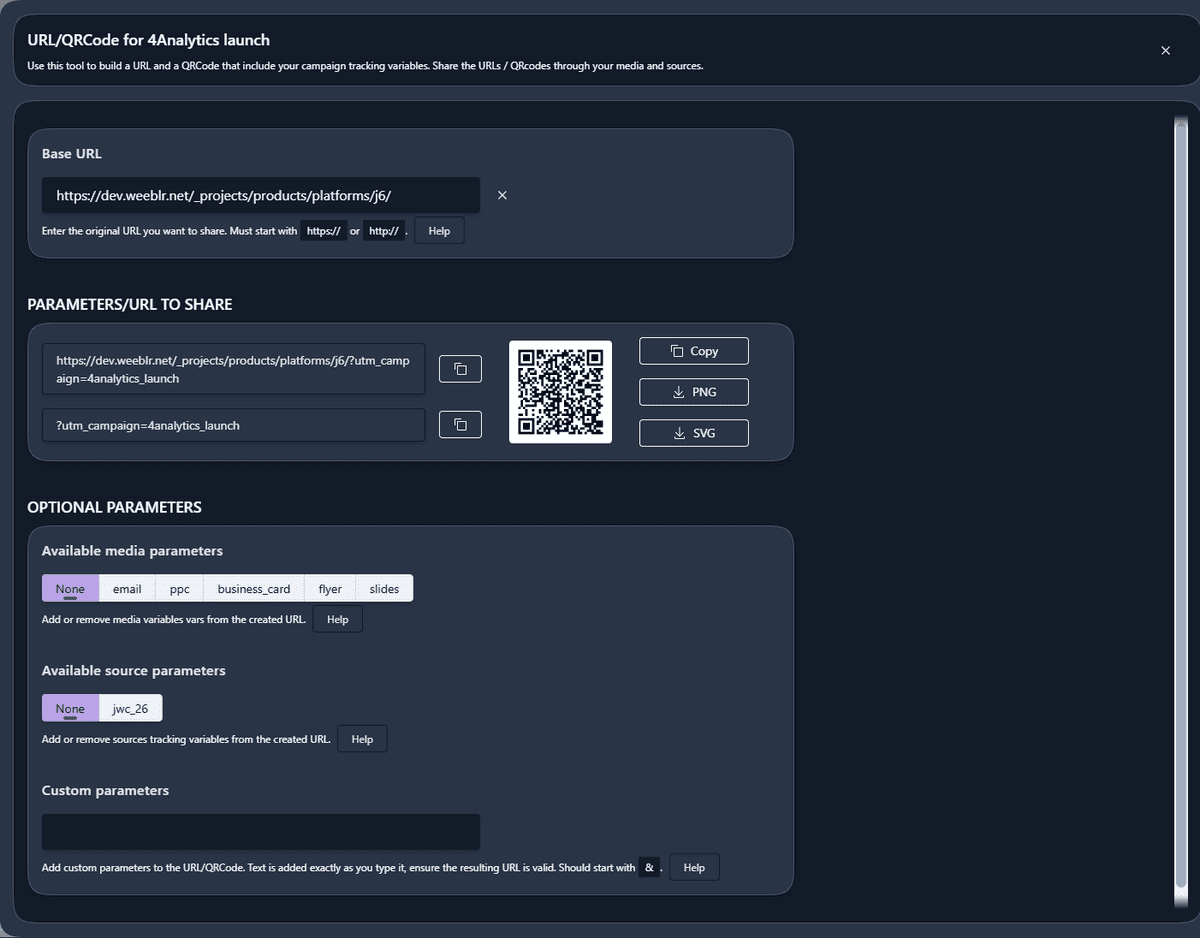
Open it up from the fly-out menu or the toolbar and:
- paste in the base URL to share (in our case, https://weeblr.com/4analytics)
- 4Analytics automatically adds the current campaign variable,
?utm_campaign=4analytics_launch - optionally select a
mediumorsource: 4Analytics also adds them asutm_mediumorutm_sourcevariables
You can then:
- click the
Copybuttons to use the links elsewhere - download as a PNG or SVG file, or copy the QrCode to use in your slides or to include in your printed documents.
PNG is the most universal image format (web, print) while SVG is good for websites - but may be a bit harder to use than PNG
Use for any website
You can paste any base URL you want in the URL & QRCode tool. It does not even have to be a URL from the current website, so you can use that tool for other websites as well.